“Unwarranted and relentless”: Baseball team rejects logo design dispute By Natalie Fear published 25 April 24 The US Interior Department considers it a foul.
Looks like the AI gadgets are in trouble By Daniel John published 25 April 24 Teething problems haunt the Humane AI Pin and Rabbit R1.
Wacom's first OLED pen display is incredibly thin and light By Joe Foley published 25 April 24 Movink 13 could be perfect for digital artists on the go.
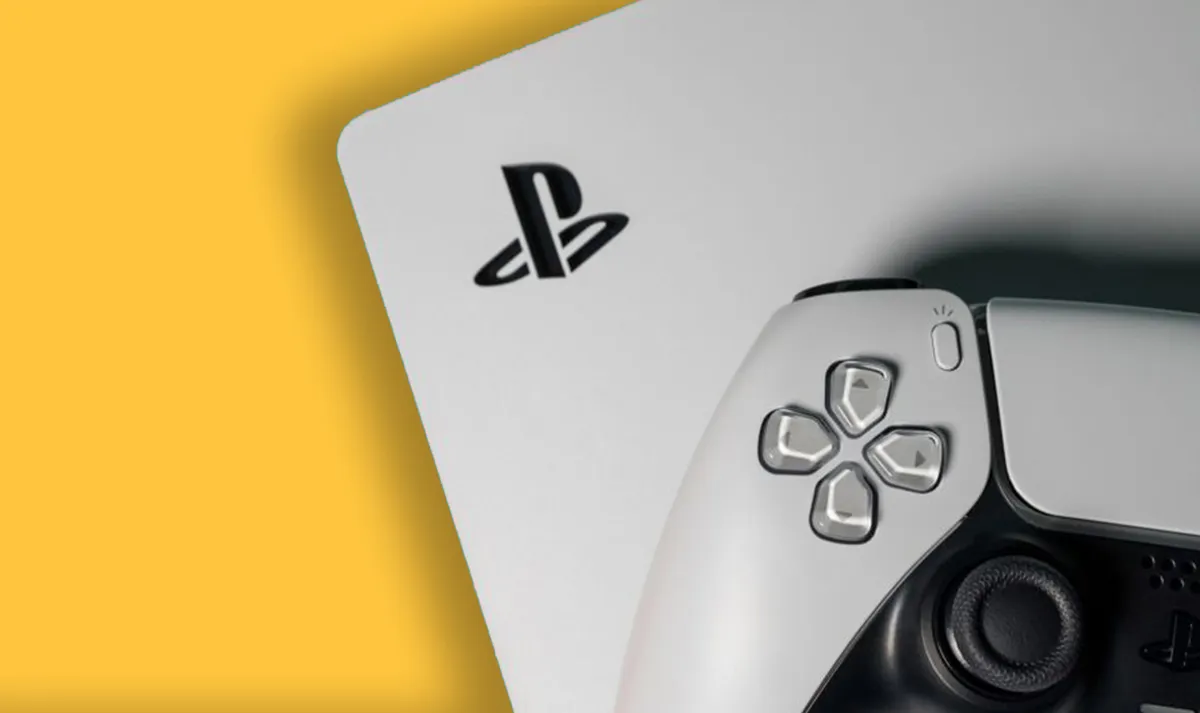
Gamers have begun declaring the PS5 a joke By Daniel John published 25 April 24 Does the PlayStation 5 really have "no games"?
AI-generated fake retro movie trailers are delightfully weird By Joe Foley published 25 April 24 What if Mario, Terminator and Dune were made in the 1950s?
Amazon's running huge flash deals on some of our favourite Asus laptops By Joe Foley published 24 April 24 But you'll have to be quick.
“Unwarranted and relentless”: Baseball team rejects logo design dispute By Natalie Fear published 25 April 24 News The US Interior Department considers it a foul.
Looks like the AI gadgets are in trouble By Daniel John published 25 April 24 News Teething problems haunt the Humane AI Pin and Rabbit R1.
Gamers have begun declaring the PS5 a joke By Daniel John published 25 April 24 News Does the PlayStation 5 really have "no games"?
AI-generated fake retro movie trailers are delightfully weird By Joe Foley published 25 April 24 Digital Art What if Mario, Terminator and Dune were made in the 1950s?
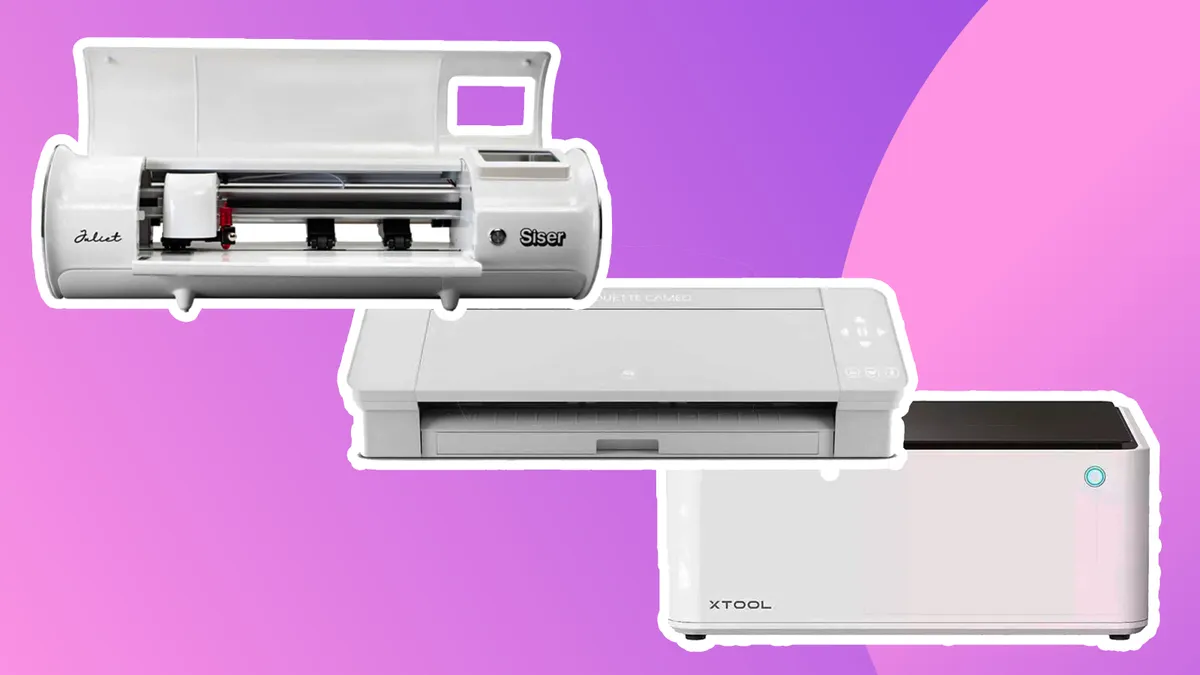
The best Cricut alternatives By Ian Dean last updated 24 April 24 Art The best Cricut alternatives for cutting and crafting with vinyl, paper, card, fabric and more.
The best software for editing videos for YouTube By Tom May last updated 24 April 24 video editing You'll find the best software for editing videos for YouTube right here.
“Unwarranted and relentless”: Baseball team rejects logo design dispute By Natalie Fear published 25 April 24 News The US Interior Department considers it a foul.
Looks like the AI gadgets are in trouble By Daniel John published 25 April 24 News Teething problems haunt the Humane AI Pin and Rabbit R1.
Gamers have begun declaring the PS5 a joke By Daniel John published 25 April 24 News Does the PlayStation 5 really have "no games"?
How to design a logo: 15 pro tips By Nick Carson, David Airey last updated 11 April 24 Logos Learn how to design a logo with these top tips for successful branding.
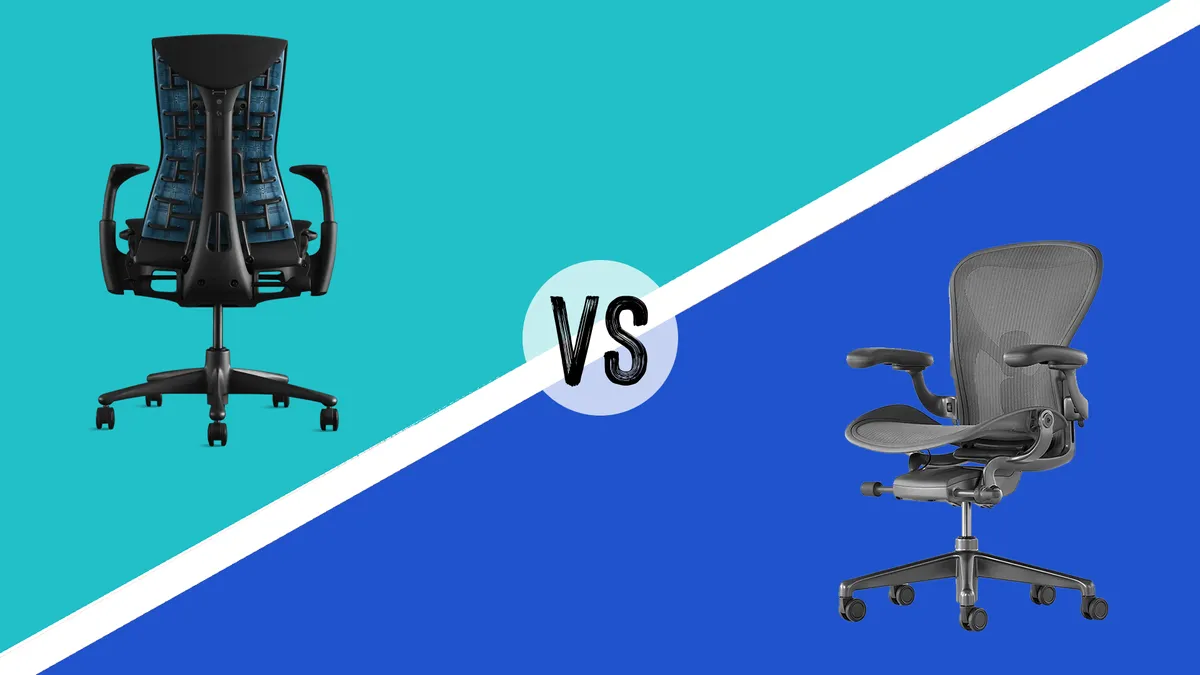
Herman Miller Aeron vs Embody By Beren Neale published 4 April 24 Lifestyle Two high-end office chairs go head-to-head.
iPad vs drawing tablets: which one should you get? By Beth Nicholls last updated 3 April 24 Trouble deciding on an iPad or dedicated drawing tablet for your digital art? We can help.
How much does it cost to build a website? By Jon Stapley published 29 March 24 Setting up a website for your business? We take a no-nonsense look at what you can expect to pay to build a website.
Minimalist website design: 12 striking examples By Creative Bloq Staff, Mark Billen published 23 April 24 Web Design These minimalist site designs prove that less can be more.
The best Cricut Easter ideas: egg-cellent craft inspiration for the holidays By Mollie Davies published 27 February 24 Art Video tutorials for the best Cricut Easter ideas.
What NOT to get a graphic designer for Christmas By Nick Carson last updated 19 December 23 Lifestyle Avoid ruining a designer's Christmas with this handy guide.
Nothing Ear and Ear (a) review: eye-catching designs meet high-end tech, for less By Ian Dean published 24 April 24 in-ear headphones Sounds like something you'll need, but which is right for you?
LightWave 2023 review: 3D software makes strong return By Paul Hatton published 23 April 24 3D LightWave is back in the game thanks to a raft of new features, including an Unreal Engine bridge.
NYXI Hyperion Pro review: this retro-style joypad is the answer to stick drift By Beth Nicholls published 21 April 24 gaming controllers This purple retro joypad from NYXI is a delightful alternative to standard Nintendo Switch Joy-Cons.
How to use an iPad as a drawing tablet with a PC By Jon Stapley published 17 April 24 Tools Want to use an iPad as a drawing tablet with a PC? There are a number of ways to do it
How to sit properly in a chair By Tom May published 17 April 24 Save your back, with our guide to how to sit properly in a chair
How to install apps on a laptop By Joseph Foley published 8 April 24 Hardware We walk through how to install apps on a laptop, including how to download games to a laptop.
7 secret Photoshop AI tricks you need to know By Martin Nebelong published 8 April 24 Digital Art How to get better at Photoshop's AI tools.